
Chrome Extension · ← / →
Next page. At your fingertips.
Use ← / → for the previous or next page on supported search results, forums and reading pages.
 Watch the recording
- Less hunting for page buttons
- Keep your browsing rhythm
- Search, forums and reading
Works on supported paginated pages. Site layouts and availability can change.
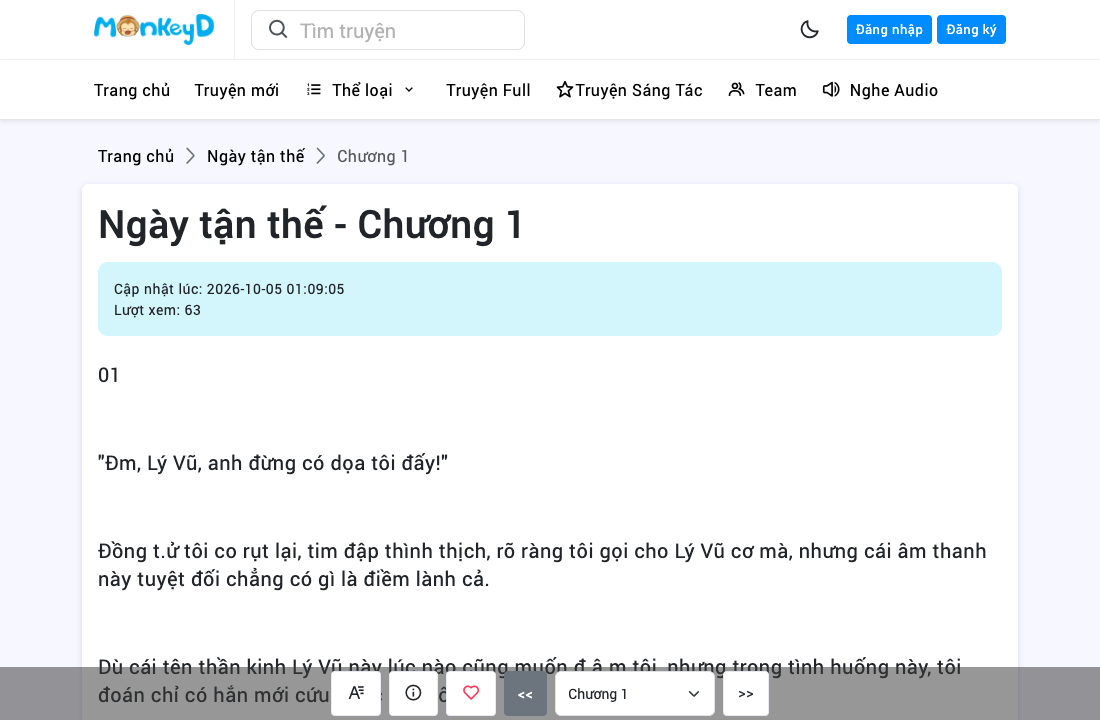
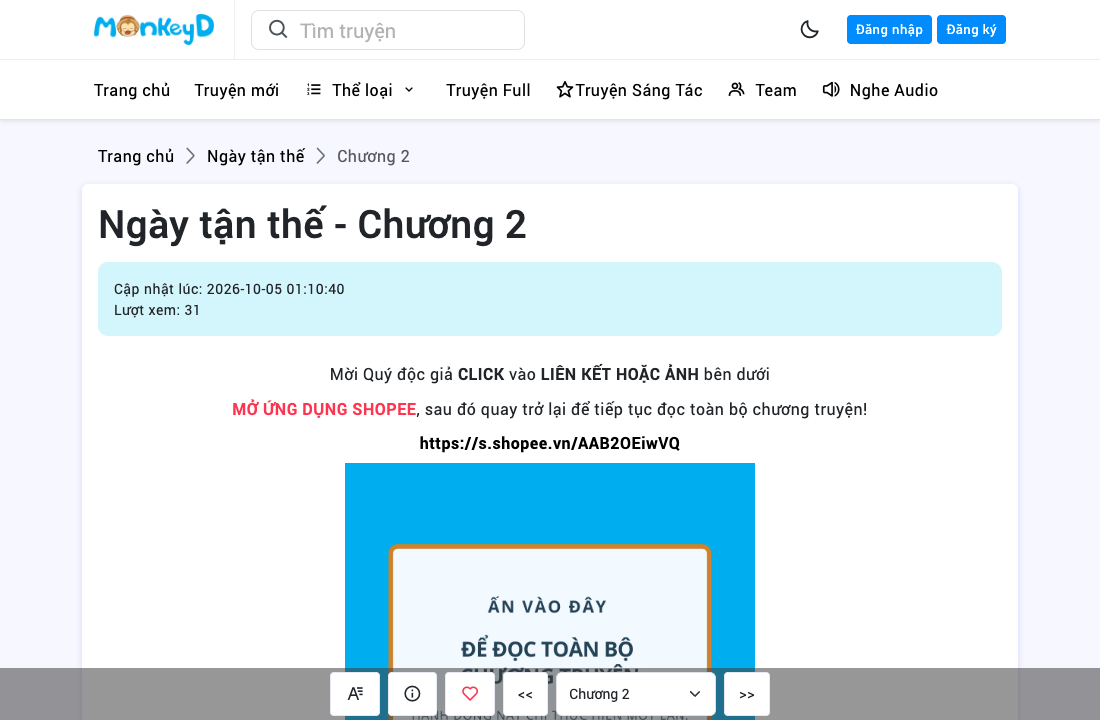
Real page captures · interactive demo
Try the arrow buttons
Page 1 of 2
MonkeyD · Chapter 1 → 2. This demo switches recorded screenshots.
351 website examples, ready to explore.
Explore supported sitesFrom searching to reading. Keep going.
 Search
 Forums
 Reading
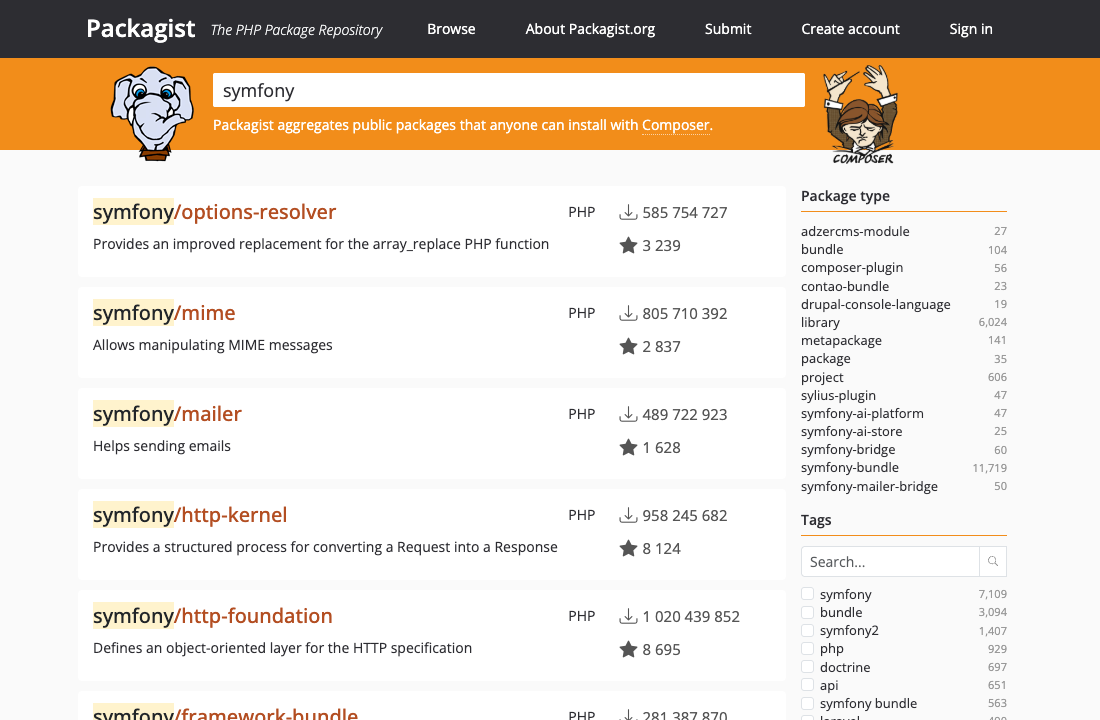
Packagist · ← / → · 1 → 2 → 1
Search
Compare results, page after page.
Compare pages of search results without returning to the pagination controls each time.
Forums
Keep up with the conversation.
Move through topic lists while keeping your hands on the keyboard.
Use it on supported topic lists with pagination. Infinite-scroll lists are different.
MonkeyD · ← / → · 1 → 2 → 1
Reading
Another chapter, without the interruption.
Continue to the next page or chapter on supported reading sites.
Ready in three steps
Install the extension
Install Arrow Navigation from Chrome Web Store.
Open a supported site
Open a supported page with previous or next pagination.
Use the arrow keys
Leave the text field, then press ← or → to turn the page.
Made to fit your browsing
Your input stays yours
Arrow keys keep their editing behavior in text fields. You can turn the extension off for an individual site from its popup.
What information is sent?
Pagination is detected on the page. Page content is not sent to an external service for detection. Support requests and comments send the information you submit.
Before you install
It turns pages, not browser history. Infinite scrolling and pages without a supported pagination target may not work.
Which websites does it support?
The directory contains supported examples, not a guarantee for every page on a domain. Website changes can affect support. Find supported sites
Will it interfere with typing?
In inputs, textareas, selects and editable areas, arrow keys keep their normal behavior.
Why does pressing an arrow do nothing?
Check that the page has pagination, move focus out of the text field and check the site switch in the extension popup. If it still fails, submit a site support request there.
Can I switch it off for one site?
Yes. Open the extension popup on that site and turn off its site switch.
What information is sent?
Detection happens on the page. Submitting a comment or support request sends the submitted information; optional contact email is not shown publicly.
A small tool. An open conversation.
Open the extension popup on a page to request site support. You can also leave a suggestion here.
Leave a message
Make your next page a keypress away.
Try Arrow Navigation on a website you already browse.